macos, automation
Scanning QR Codes on Mac for Automation
Use ScanCode to scan QR codes and barcodes from your Mac's camera or screen. Trigger SEPA transfers, add WiFi passwords, open URLs, extract OTP keys and more.
February 2026
It started with an invoice. I wanted to scan the QR code on a German Überweisung (payment transfers) and have it open directly in my banking software. No typing, no copy-paste errors on those long IBANs. Seemed like it should be easy.
It wasn’t. On iOS, the camera app handles QR codes natively. But not payment transfers either. On the Mac? Nothing. There was no straightforward way to scan a barcode from the built-in camera and do something useful with the result.
Then I ran into the same wall again with two-factor authentication. A service showed me a QR code containing a TOTP secret key and I was supposed to scan it with my phone. But I was sitting right in front of my Mac, staring at the code on my screen. Why couldn’t I just scan it right there?
That frustration is what led me to build ScanCode.
What ScanCode does
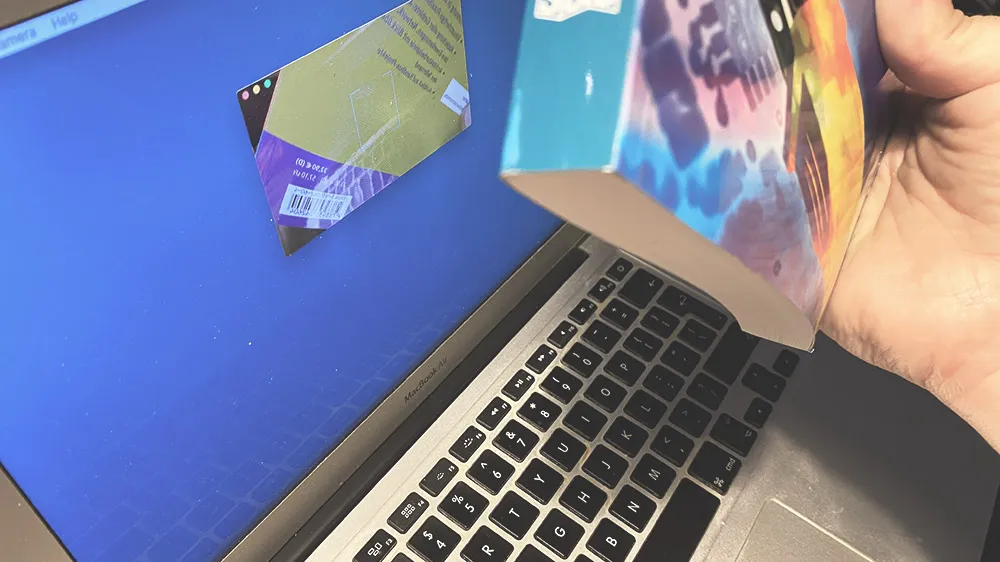
ScanCode scans QR codes and barcodes on macOS. It reads from the built-in camera or directly from the screen. Once it decodes the content, it can act on it immediately or pass it along to scripts for automation.
The first version scanned codes and handed the raw data to external actions via Automator workflows or shell scripts. Everything else was up to you.
Version 2 is different. Most common actions are now built in. ScanCode recognizes the type of content and offers the right action automatically. You can still pipe data into custom scripts, but for everyday use cases you no longer need to.
Here is what it handles out of the box:
| Type | What’s encoded | What ScanCode does |
|---|---|---|
| URL | http:// or https:// links |
Opens in your default browser |
| SEPA | Payment data (EPC, Bezahlcode, payto) | Opens a pre-filled transfer in your banking app |
| WiFi | Network name, encryption, password | Copies the password to your clipboard |
| OTP | otpauth:// with secret key and parameters |
Copies/opens the key in your authenticator |
mailto: with address, subject, body |
Opens your email client with message ready | |
| Contacts | vCard or MeCard data | Adds to your address book |
| Events | Calendar dates, times, locations | Creates a calendar entry |
| Geo | geo: URI with coordinates |
Opens in Maps |
| Bitcoin | bitcoin: URI with wallet address |
Copies address or opens wallet app |
For anything that doesn’t match a known pattern, ScanCode can copy the raw text to the clipboard or save it to a file. Combined with shell scripts, you can build custom workflows for whatever you need.
SEPA transfers
This is still the main use case for me. QR codes on European invoices encode the payment information for a bank transfer. No manual entry, no transcription errors.
What’s inside the QR code
There are several standards for encoding SEPA payment data in QR codes.
EPC QR codes are the most widespread in the EU. The European Payments Council defined the standard and it’s used in Austria, Belgium, Finland, Germany and The Netherlands. The encoding is straightforward. Lines of text, one field per line:
BCD
002
1
SCT
RLNWATWW
Doctors Without Borders
AT973200000000518548
EUR1500.99


Emergency Donation
BCD identifies it as an EPC code. If you want to generate one yourself, there are online tools for that.
Bezahlcode was a German standard using a bank:// URI scheme:
bank://singlepaymentsepa?name={NAME}&reason={REASON}&iban={IBAN}&amount={AMOUNT}
The official website is long gone but the format is still understood by some banking apps.
The Swiss QR bill uses its own format, optimized for the Swiss payment system. If you handle Swiss invoices, you’ll encounter this variant instead of EPC.
The payto URI defined in RFC 8905 is the standards-track approach:
payto://iban/{IBAN}?amount=EUR:{AMOUNT}&message={MESSAGE}
Adoption is still limited, but it’s the one backed by an RFC.
Getting it into your banking app
ScanCode recognizes all these formats. For MoneyMoney (my banking software of choice on Mac), it converts the scanned data into a URL scheme that MoneyMoney understands and opens a pre-filled SEPA transfer. No intermediate steps.
MoneyMoney supports both the bank:// and payto:// URL schemes. ScanCode handles the conversion from EPC or whatever format the QR code uses.
Other banking apps with URL scheme support work the same way. The point is that you go from paper invoice to pre-filled transfer form in a single scan.
A word on security
Be careful with QR codes from untrusted sources. A QR code is just a way to encode text and that text could be a malicious URL or a crafted payload. The same caution you’d apply to clicking unknown links applies to scanning unknown codes.
ScanCode allows you to show the decoded content before taking action, so you always get a chance to inspect what you’re about to open.
From camera to workflow
The gap between phones and Macs in terms of QR code handling has always been strange. Phones scan codes effortlessly. On the Mac - not so much. ScanCode fills that gap. Whether it’s a payment on an invoice, a WiFi password at a hotel, or a TOTP key for your authenticator, the flow is the same. Point, scan, done.